

How To Load Maps On My Garmin GPS Unit
Author: Dan Blomberg & Rex Coggins | Last updated July 19th, 2014 at 11:37pm
These days many of Garmin’s new GPS receivers contain built in maps, from the nuvi series with road maps to the Colorado and Oregon with topos. These receivers can still have maps loaded to them though in addition to the maps that already exist. This how-to will detail how to load additional maps to your GPS unit with either a Mac or a PC. This tutorial was updated in July of 2014 for the updated PC process.
- PC: Use BaseCamp/MapInstall To Load Maps
- Mac: Use MapInstall To Load Maps
- PC: Use MapSource To Load Maps
Warning: If you bought a micro-SD card that contains maps from Garmin DO NOT overwrite this card, use another card.
Loading The Maps With BaseCamp and MapInstall on a PC
When loading maps onto your GPS Garmin BaseCamp is the preferred program. For newer GPS units (Garmin Colorado and newer including Dakota, Oregon, Montana, and 62 series) the program will allow you to manage maps very easily/quickly. For older units it will have to rebuild the entire map database you've selected each time. This also causes a variation in how you select maps; this variation will be covered in this tutorial.
- Open Garmin BaseCamp (all screenshots from version 4.3.4)
Note: You'll need version 2.0.9 or higher to load custom maps. - Plug in the device you would like to load the maps to (a microSD card, SD card, or the actual GPS unit)
For this tutorial I will be using a Garmin Dakota 20 and also a Garmin 60CSx with memory card installed in the GPS; using a card reader will allow for faster map installs. - The device/card should appear on the left side as shown:
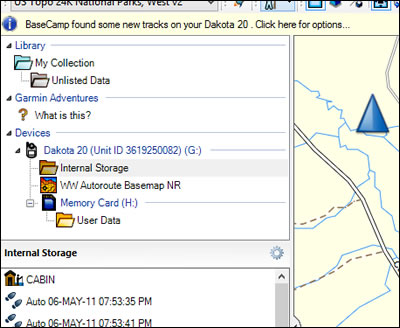
- Right click on either the card or device and select "Install Maps"
- MapInstall will open. If all of your maps will fit on your GPS it gives you a quick option to install them all. All my maps will not fit and thus I have to select the maps I want to use. Click continue. (Note: This option will not exist with older GPS units that only allow one compiled map per device (60CSx and similar)
- The next screen will show you all the maps installed on the unit currently. You can select and unselect as you see fit and it will install the entire map selected. (Note: This option will also not exist with older units such as the 60CSx)
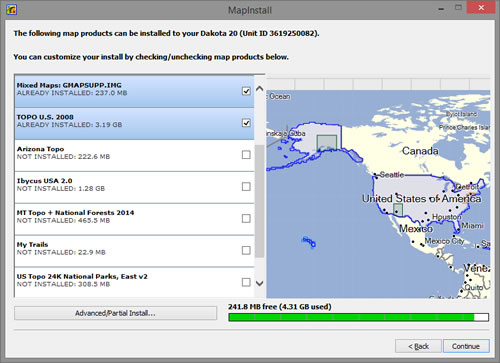
- Optional for newer units, required for older units: If you have limited memory space to just want to install specific parts of the maps click the Advanced/Partial Install button in the lower left corner. The steps below will go through the advanced/partial install. This is the starting point for older GPS units.
- If you have unrecognized maps on your GPS (maps you have previously installed that aren't installed on this computer you can delete them at this point to save space.
- At the bottom of the new window you can select each map that you want to load pieces of.
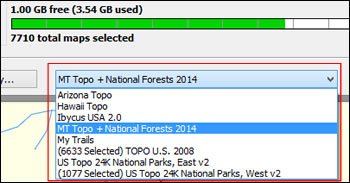
- To select the parts just click and drag across the map. Selected segments will outline in yellow while being selected and be outlined in black with a blueish tint when selected. This will update the amount of space bar left at the bottom. To unselect segments click and drag with the right mouse button.
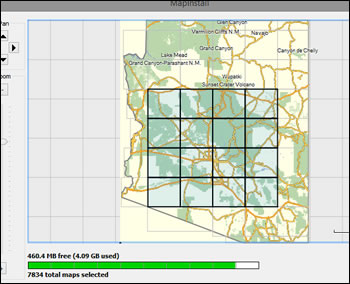
Note: Older GPS units have a 2025 map/segment limit and will only read 2gb of card data so be sure to watch that. - You can now switch maps at the bottom. Select the segments you want from each map and then click Continue.
- The next screen will tell you what maps are going to be loaded. Click Install.
- MapInstall will now build the map sets and send them to the GPS unit or memory card depending on which you selected.
- You will get a success message at the end similar to: “The data has been successfully sent”
Once you have the maps on the GPS you can follow this tutorial to show how to hide and show different maps.
Loading The Maps With A Mac
Contributed By Rex
- Download and install MapInstall
- First off, plug your GPS into your Macintosh and have it turned on. MapInstall will not make it past the second page unless you do this or if you are installing to a card reader, you will want it plugged in and the card mounted.
- Open up the MapInstall application. You will get this splash page:
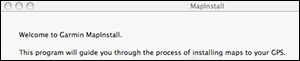
Click continue - Select your GPS or card reader and click Continue
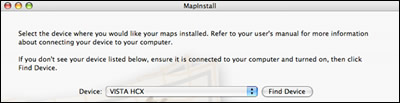
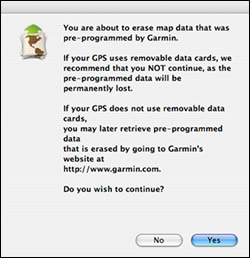
- If you see a screen like the one below you might want to check that you have the correct data card in the reader before you wipe out anything you might need later:
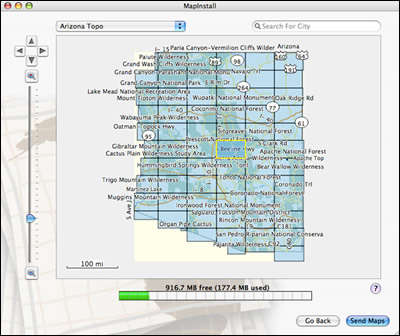
- In the upper left of the window you should see a pull down menu where you select the map set you want. In this example, we have chosen Arizona Topo:

- You can click on tiles to select them or marquee a selection; here I have selected the complete map. At the bottom of the window shows how much memory you have available and also what you have used. If you want to add maps from another map set, just select the other map set from the pull down menu and add them as above. When you are finished, select the Send Maps button.
- MapInstall will combine all the maps into one gmapsupp.img file to send to your GPS. This could take a while, depending on the size of the maps and the speed of your computer.
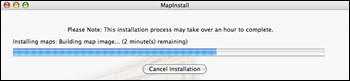
- Once the gmapsupp.img file has been compiled, MapInstall will send it to your GPS or card reader.
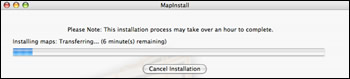
Loading The Maps With MapSource on a PC
Garmin MapSource is now an obsolete product. We recommend that all users use Garmin BaseCamp to browse and load maps for Garmin GPS units.
- Open Garmin MapSource (all screenshots from version 6.14.X but the process is similar for all versions)
If you don’t have Garmin MapSource check out this tutorial on how to get it. - Select the map you want to load from the drop down menu in the upper left corner.
If the map you want is didn't include an installer follow this tutorial first and then continue to step 3.
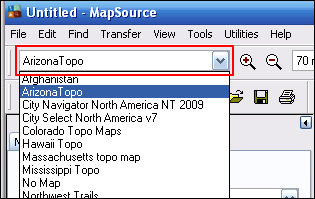
- Once the map is select let it load in the main window.
- Zoom to an appropriate level so you can see what parts you want to load (if you do not want to zoom all the way out you can select what is on screen and then easily move to another part of the map and select those areas as well).

- Click the “Map Tool” button

- Select the segments you want to load by dragging selection boxes on the map.
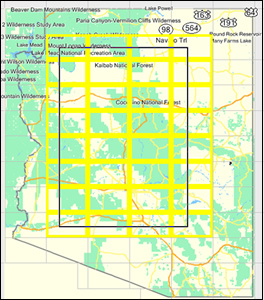
- The selected areas will then turn pink:
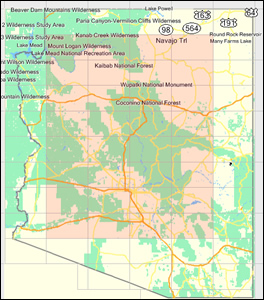
and appear in the maps tab on the left side of the screen (at the bottom of this area you can see how many segments you’ve selected and how large they are). - Repeat steps 2 through 7 for any other maps you want to load at the same time (such as a Topo map and City Navigator and another topo map).
- Now plug your GPS in to the computer or put the memory card from the GPS (or the one you will use on the GPS) into your card reader.
- Now click the “Send to Device” button

- On the next screen you should see your device (make sure it’s the proper device; here I am loading to my microSD card). Also, make sure the maps checkbox is checked.
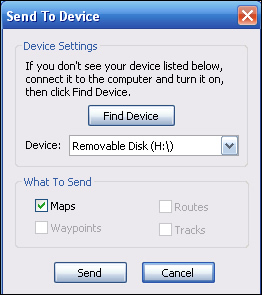
- Click “Send”
- First it will build the mapset (could take many hours depending on the maps):
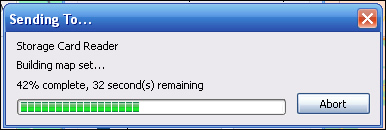
then it will transfer it to the card/GPS:
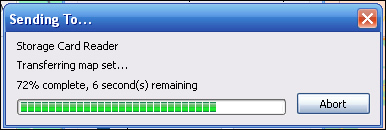
- You will get a success message at the end similar to: “The data has been successfully sent”
Once you have the maps on the GPS you can follow this tutorial to show how to hide and show different maps.
Note: Certain GPS units (60c(s)x, Legend/Vista/Etex (H)Cx, any unit released prior to the Colorado) have map limits. They will only read 2gb of maps on a card (even if the card is larger) and will only read 2024 segments.
Congratulations, you have now loaded the maps to your GPS unit. If you have multiple maps loaded onto your device use the internal menus to select which map to actively view.
 Support GPSFileDepot
 Contact Us
 Subscribe to RSS Feed
 Share on FaceBook