

How To Geotag Your Photos With GPicSync
Author: Dan Blomberg | Last updated April 11th, 2008 at 07:30pm
Introduction
This tutorial will teach you how to tag your pictures with GPS coordinates, known as GeoTag, using a free program named GPicSync. This program will dictate specifically how to do this with Garmin's program and a GPSMap 60csx receiver but this can be used with any GPS receiver that writes tracklogs.
Requirements
This tutorial requires you to have a few things:
- GPS Receiver capable of writing a tracklog as you move
- GPicSync
If you want to be able to view your pictures on maps it is very easy to do with the free Google Earth program.
Prior To Taking Your Pictures
Syncing The Camera & GPS Receiver Time
Before you go out and take pictures (and bring your GPS receiver) along you need to sync the clocks. On your camera get to the menu and find the clock setting. Before you change the time on the camera you need to know what the time is on the GPS receiver. For the Garmin 60Csx you can find the time by pressing the [MENU] key twice. The time will be displayed at the top. For my canon camera I had to wait for the time to be XX:XX:59 and then set the camera time since it didn't have seconds editable. It is important to be synced to within a few seconds for completely accurate geotagging.
Once the camera time is synced to the GPS receiver you are done with this. As long as your camera doesn't lose or gain time you won't have to do this step again.
Making Sure The GPS Receiver Is Writing Tracklogs
Many GPS receivers will write tracklogs. For the Garmin 60csx (and many others with memory cards) you can also write tracklogs to the memory card. This is the best option for syncing because each day gets a seperate log.
First, make sure that tracking is enabled (see this screenshot from a 60CSx):

If you can enable writing tracklogs make sure you do so. For the 60CSx to the Tracks from the menu, then setup, then Data Card Setup, and check the box at the top to "Log Track To Data Card". This will write daily tracklogs to .gpx files on the memory card.
Geotagging The Pictures
Now that you've taken pictures and brought your GPS receiver along you are ready to sync the pictures to the tracklogs.
- Download the pictures from your camera.
- Download the tracklog from your GPS receiver.
- If the tracklog was stored in internal memory use the program from your manufacturer such as Garmin MapSource
- If you saved the tracklog to the memory card you have to put the GPS into "Interface Mode" or take the card out and access it directly. You can then drag the logs off the card.
- Save the tracklog as a .gpx file (not neccessary if it already is one)
- Open GPicSync
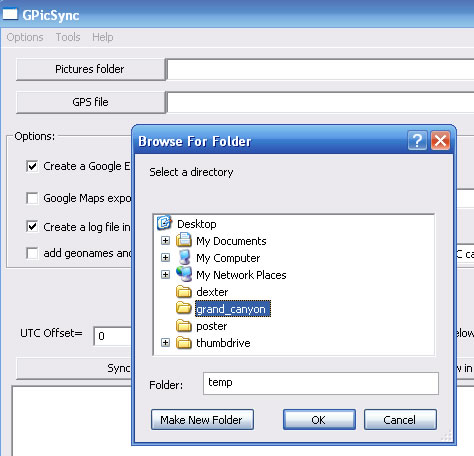
- Click "Pictures Folder" and select a folder full of your pictures:
- Next click "GPS File" and select the GPX file from that day
- Note: You can do multiple days of photos by processing the folder multiple times with different GPX files from each day.
- If you are connected to the internet it is nice to check the box "add geonames and geotagged" this will write into the EXIF comments how far you are from the nearest town. (Optional)
- If you were driving or have few track points you should check the "Interpolation" box.
- The most important setting is the UTC Offset=. Set this to the number of hours you are off from GMT. The easiest way to check this is to check the Time Zone in windows; GMT-XX:XX where the first two XX's is the time offset. So for Arizona my UTC offset is -7.
- Press Synchronise!
The pictures will now have the GPS coordinates put in their EXIF tags where many programs can read them.
Viewing Geotagged Pictures
From GPicSync right after synchronization you can press View in Google Earth to load the pictures into an easily viewable map.
If you use Picasa (also free) you will notice Geotagged pictures have a "star" in the lower right corner:

as shown in the above screenshot. You can then click Tools>Geotag>View In Google Earth...
There are plenty of other options to view your Geotagged Photos on maps including Flickr and Gallery add-on modules.
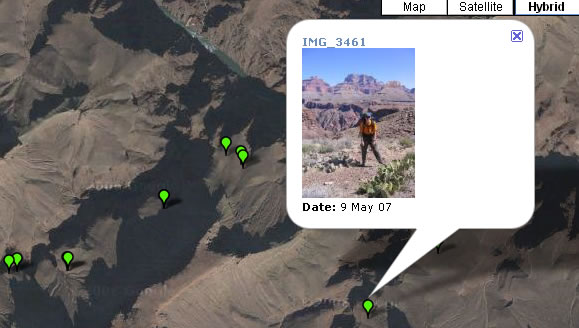
Here is a sample of geotagged photos from a hike through the Grand Canyon:
I hope you enjoyed this tutorial and found it helpful. If you have any stories or comments don't hesitate to contact me.
 Support GPSFileDepot
 Contact Us
 Subscribe to RSS Feed
 Share on FaceBook